MONOLITH / A FIELD GUIDE
Design a city
worth exploring.
Monolith is a free 3D city builder and architecture playground in your browser. Shape Brutalist, Art Deco, and timber buildings, design streets and public spaces, and walk through the neighborhood you make.
No account or installation is needed. The game uses JavaScript and WebGL2; this guide is readable without either.
Start building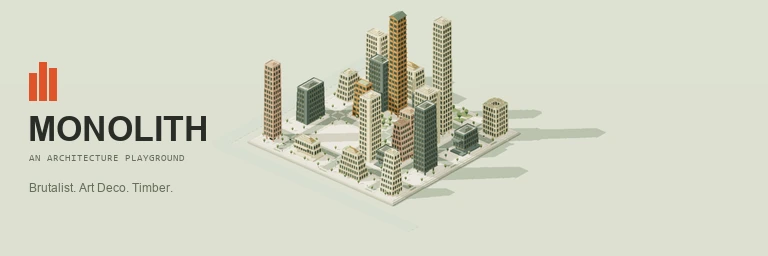
01 / BEGIN SOMEWHERE
Your first design
Open Monolith and select a building in the city. The inspector lets you change its name, floors, width, depth, rotation, and architectural details. Pull a slider and watch the model respond. Undo and Redo let you try an idea and return to it.
To add a building, choose a language and a typology under Design, then select an open site. A green outline means the building fits. Keep placing buildings, or press Escape to return to selection. On a phone, open Build for city tools and Edit for the inspector.
Try making one building shorter, widening its neighbor, and leaving an opening between them. Move the sun and compare the spaces they create. The street network and island boundary are fixed, but their character and the buildings around them are yours to shape.
02 / THREE LANGUAGES
Give each building a point of view
Architectural language changes a building's expression. Building typology determines its basic form and use. You can mix languages in one neighborhood or explore a more unified skyline.
Brutalist
Explore concrete massing, deep window reveals, setbacks, terraces, and planted roofs. Pilotis lift a building above columns and change how it meets the ground.
Art Deco
Give the skyline vertical rhythm, geometric ornament, and a stepped crown. Crown height and ornament controls let you move from restrained to expressive.
Timber
Work with warm structural bays, generous eaves, galleries, and pitched roofs. A planted roof stays flat; turn planting off to explore roof rise.
Under the building's Surface tab, choose a language and its materials. Shared form and glazing controls remain available where the typology supports them.
Imprint a style lets you preview a different language on one building, its street block, or the whole city. Select a building to hold the preview, then Apply when you like it. Footprints and occupied floors stay the same. Parks keep their appearance. One Undo restores the whole imprint, including its cost.
03 / THE SPACE BETWEEN
Make room for public life
In Design → Public space, choose a street segment and preview a neighborhood street, green boulevard, or pedestrian street before applying it. Pedestrian streets stop car traffic. Remove placed public-space items before bringing traffic back.
Add paths, shared plazas, shade trees, benches, street lights, planted rooms, and fountains. Resize, rotate, move, or remove placed items. Paths and plazas can share ground with furniture; buildings, existing parks, and active traffic lanes must stay clear.
Use a building's Details tab to change the lowest occupied floor into homes, a café, local shops, an office, a workshop, or a community room. Upper floors keep their existing mix. Original use restores the typology's original ground-floor program. These choices affect housing, jobs, activity, cost, and upkeep.
04 / A CHANGE OF PERSPECTIVE
See the city from inside
Experience offers an architect's model, a figure-ground plan, an orbiting street-level view, and a slow orbit. Drag to orbit, right-drag to pan, and scroll to zoom. On touch screens, drag with one finger; pinch to zoom or use two fingers to move the model.
Take a walk gives you direct movement at eye level. Focus the city and use WASD or arrow keys, drag to look around, or hold the onscreen direction buttons. Follow a resident moves along a neighborhood promenade while you look around. Buildings, furniture, and island edges constrain movement. Escape or Back to model returns to editing.
Change the atmosphere between warm daylight, overcast light, and blue hour. Use daylight, density, and neighborhood activity views to reveal different patterns. Capture downloads the current 3D scene as a PNG; Immerse yourself hides the interface until you return to the studio.
Render quality offers Automatic, Detailed, Balanced, and Efficient. Automatic balances detail with graphics work; choose Efficient for gentler animation or Detailed for full moving shadows. This preference stays on your device and does not change the design. With reduced motion enabled on your device, the model redraws when you edit or move the view; walks, resident following, and slow orbit remain available when you choose them.
05 / TRY ANOTHER FUTURE
Compare ideas, then let them live
Free design provides an unlimited construction budget. Living city, under Simulate, adds funds, upkeep, income, and population growth. Start time or advance one day at a time. Homes, jobs, green space, and daylight influence the model. Changes that exceed the available budget are rejected as a whole.
Save alternatives as A and B under Experience. Compare construction cost, housing capacity, jobs, daylight, walking access, greenery, and embodied carbon. Preview either study without replacing the working city. Return to Current city, or Restore this study to keep developing that alternative. Undo restores the city you were editing.
06 / KEEP THE POSSIBILITIES
Save your city and its alternatives
The working city autosaves in this browser when browser storage is available. It does not automatically sync to another device. A/B studies are stored separately in the same browser.
Use City files → Download city for a portable JSON copy, and Open a city to load a saved file. Download A and B separately with their study download buttons. Keep downloaded copies if you want to preserve work before clearing browser data or changing devices. PNG captures are pictures, not editable city saves.
Current downloads use save format v3, including architectural details, streets, public spaces, and ground-floor uses. Earlier v1 and v2 city files remain supported. Undo history is limited to the last 60 changes in the current session.
A small change can make a different place.
Try one street, one roof, or one unexpected mix of materials. Walk the result. Save an alternative and see what changes.
Build your city